How to Make a Collage on iPhone (Step-by-Step with Phot.AI)
Design Eye-Catching Photo Collages on Your iPhone in Just a Few Taps
The iPhone Collage Problem Every User Faces
You've got dozens of great photos from last weekend's trip, your friend's birthday, or that perfect golden-hour sunset series. But here's the frustration: there's no easy way to put them together beautifully on your iPhone.
I've been there. You search "how to make a collage on iPhone" or "collage app for iPhone," hoping for a simple solution. You scroll through endless app store listings, each promising easy collages but delivering cluttered interfaces, watermarks, or pushy subscriptions.
Here's the irony: the iPhone camera is world-class. It shoots in ProRAW, captures stunning portraits, and handles low light like a champ. Yet creating aesthetic collages—something that should be simple—still feels unnecessarily complicated.
In this guide, I'll show you exactly how to make a photo collage on iPhone that's free, fast, and genuinely stunning. The secret? Phot.ai is your AI-powered creative assistant that handles the heavy lifting while you focus on the creative decisions that matter.
Why the Native Photos App Isn't Enough
Let me be clear: Apple's Photos app is powerful. You can create memories, view photos in grid layouts, and even use Shortcuts to combine images. I use these features daily for quick organization.
But when it comes to actually making a collage on an iPhone, the limitations become obvious: No layout control. You can't arrange photos side-by-side or in custom grids without third-party tools.
No background customization: Want a soft pastel backdrop or marble texture? Not happening in the native app.
No quick merging: Creating side-by-side photos on iPhone requires workarounds like screenshots or editing in multiple apps.
This is where [Phot.AI]((https://app.phot.ai) becomes essential. It's the missing link between your iPhone's camera capabilities and professional-looking output. You get studio-quality collages without learning complicated editing software.
Phot.AI gives you two options: use it directly in Safari with zero installation, or download the dedicated iPhone app for even faster access. Both versions offer the same powerful AI tools, so you can choose based on your preference.
Why Phot.AI Is the Smart Way to Create iPhone Photo Collages
I've tested dozens of collage makers over the years, from dedicated apps to online tools. Phot.ai stands out because it uses AI intelligently, not as a gimmick.
Here's what makes it different:
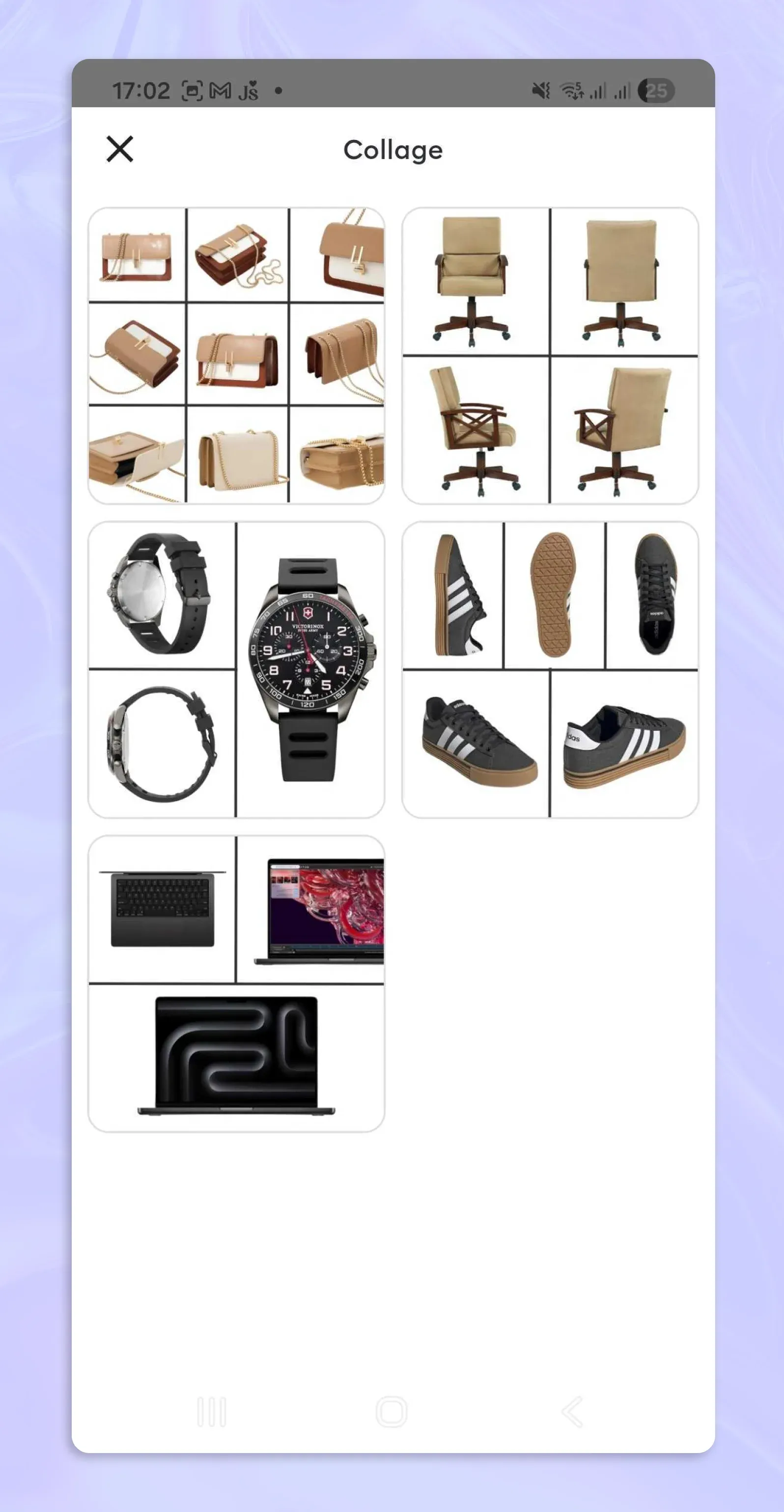
AI Collage Generator: This tool automatically arranges multiple photos into visually balanced layouts. It's not random—the AI analyzes faces, colors, and lighting to create compositions that feel intentional and professional.
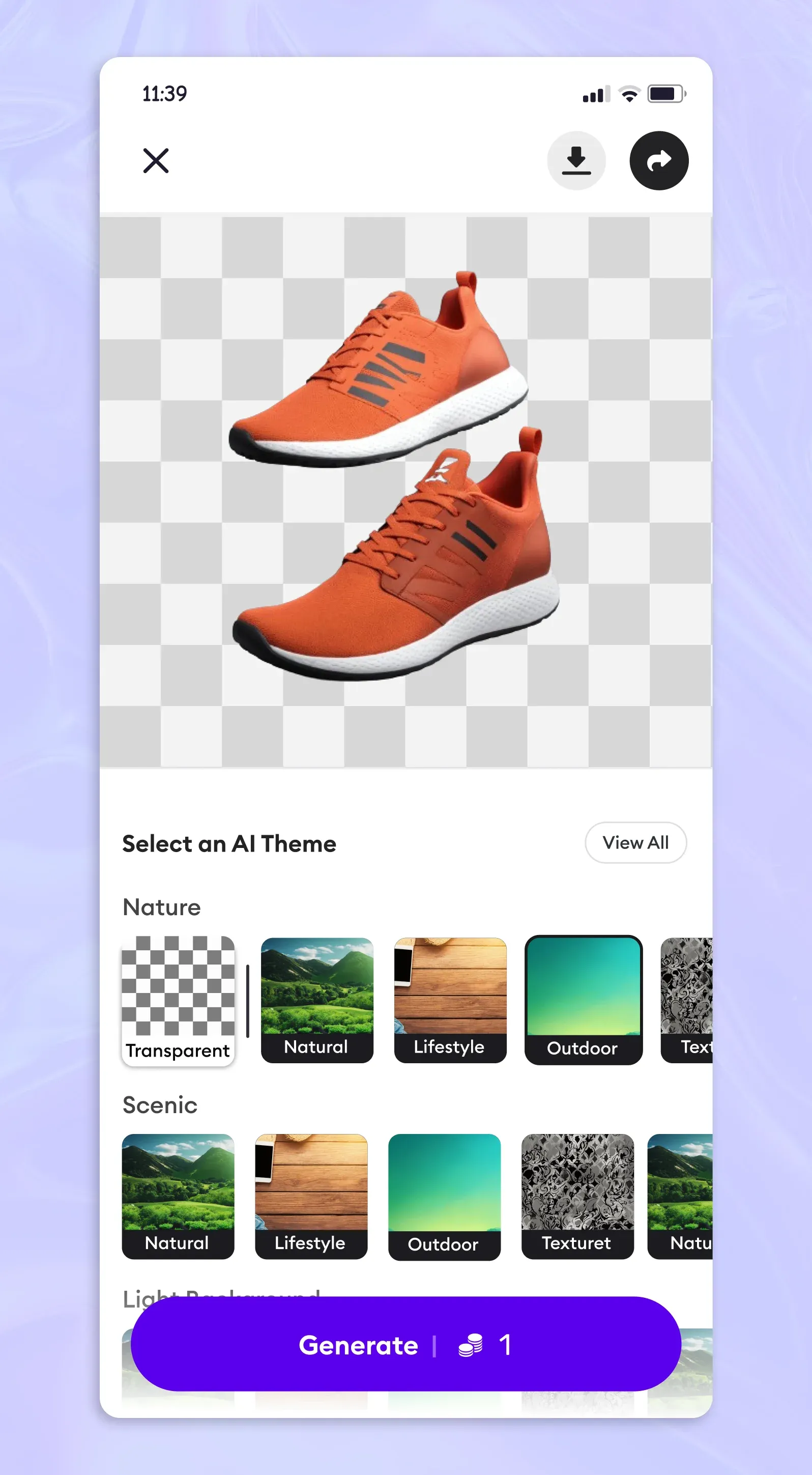
Background Replacer: [Remove or change backgrounds]((https://app.phot.ai) instantly. I use this constantly to unify photos taken in different locations or lighting conditions.
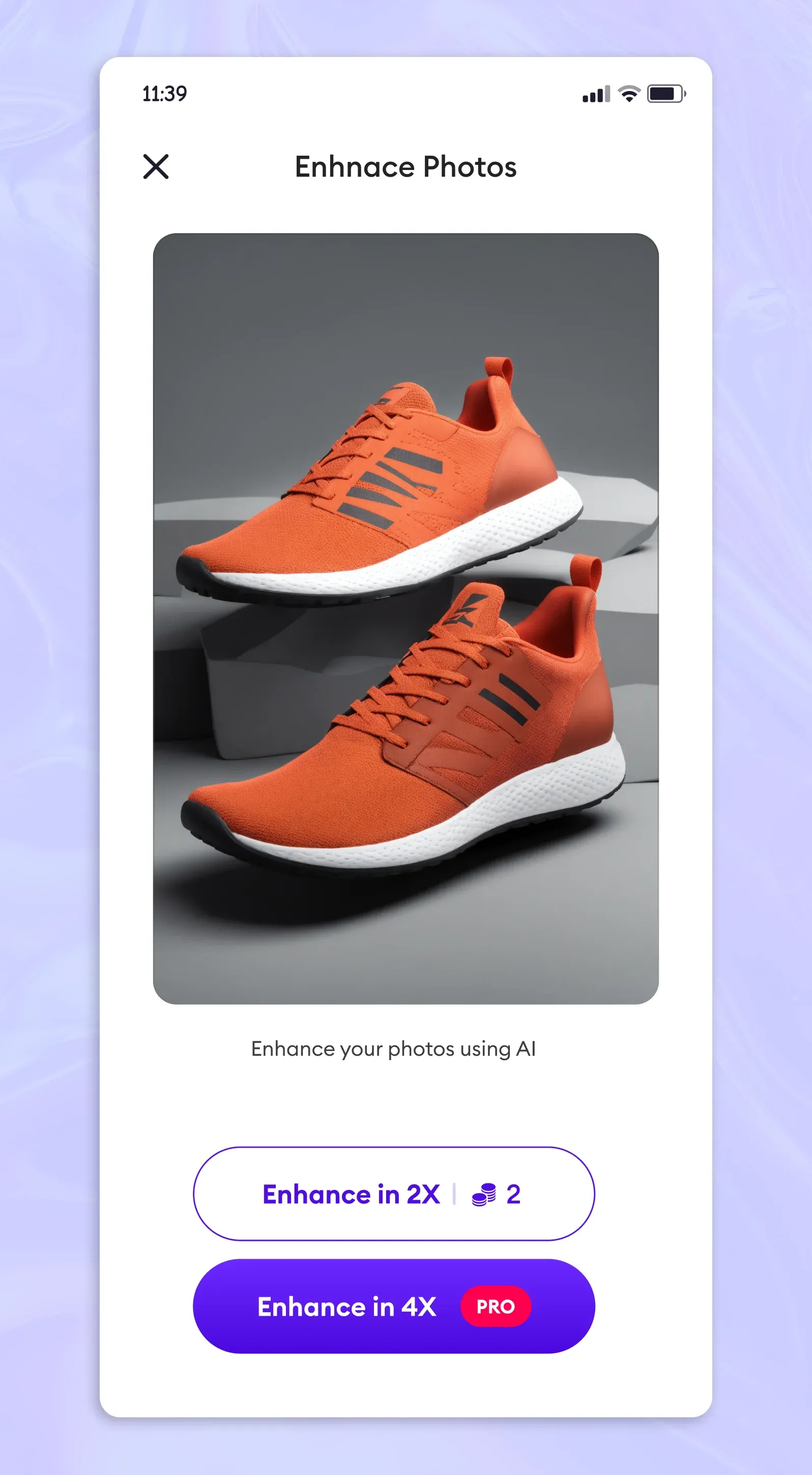
AI Photo Enhancer: Adjusts exposure, contrast, and color temperature across all images so your collage looks cohesive, not like a patchwork of mismatched photos.
The technology behind this matters. Phot.ai uses computer vision models combined with aesthetic scoring algorithms. These systems evaluate photo placement, spacing, and visual weight to create balanced compositions automatically. You're not dragging photos around a canvas hoping they'll look good. The AI handles composition intelligently based on proven design principles.
This isn't like traditional collage apps where you're stuck choosing between generic templates. It's more like having a design-savvy friend who knows exactly how to arrange your photos for maximum impact.
Whether you prefer using Phot.ai in your browser or downloading the app from the App Store, you get the same professional results with zero learning curve.
Step-by-Step: How I Make Collages on My iPhone Using Phot.ai
I'm going to walk you through my exact process. I create collages weekly for Instagram, family albums, and client presentations, so this workflow is battle-tested.
Step 1: Upload Your Photos
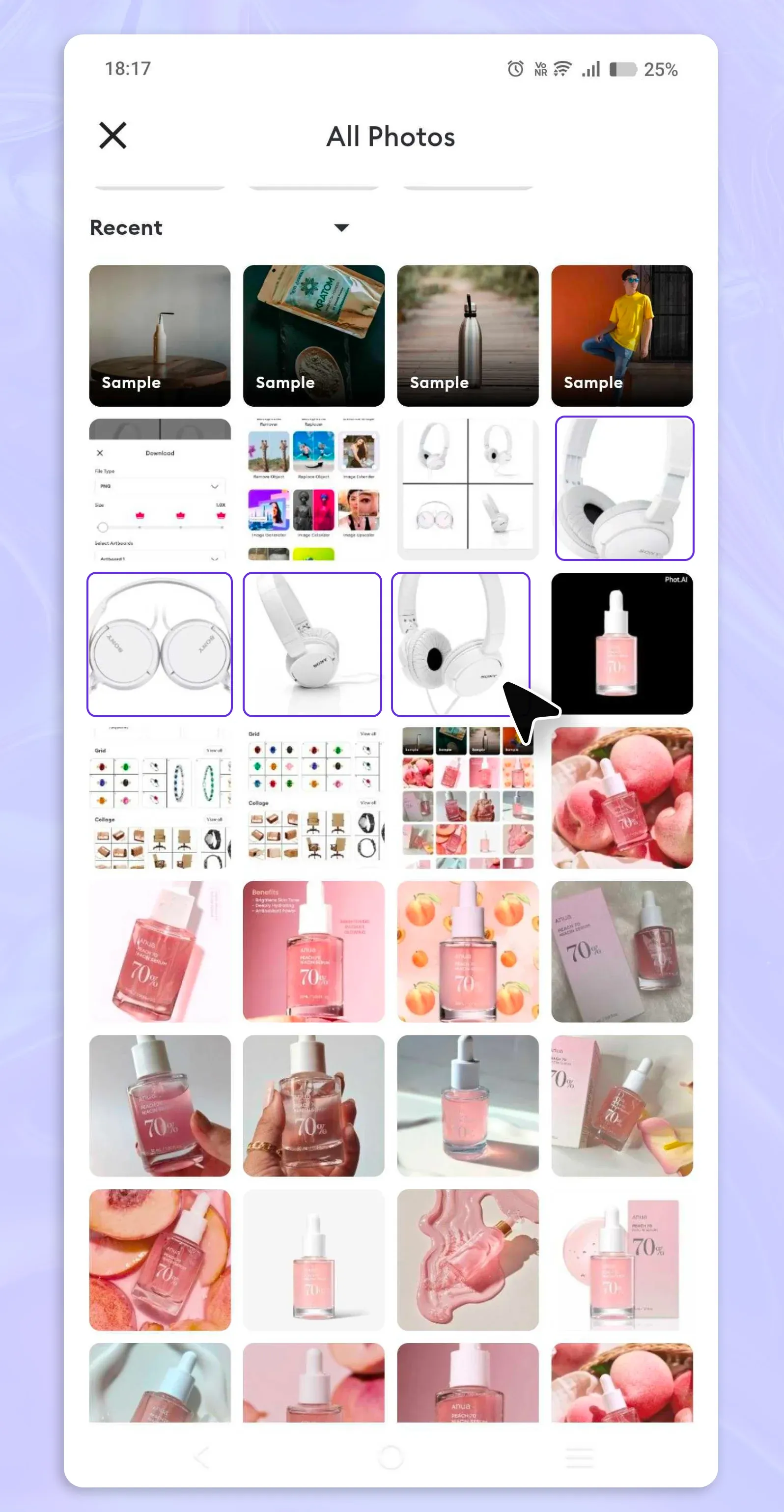
I open [Phot.AI]((https://app.phot.ai) on my iPhone either through Safari or the dedicated app from the App Store. Both work identically, so I switch between them depending on whether I'm already browsing or want dedicated app access.
I tap "Upload" and select 3–6 pictures from my camera roll. Here's what I love: Phot.ai supports full-resolution HEIC files (Apple's native format) and standard JPEGs without compression. Your photos maintain their quality throughout the entire process.
Pro tip: Choose photos with similar lighting or color temperatures. It makes the AI's job easier and results in more cohesive collages.
Step 2: Choose 'AI Collage Generator'
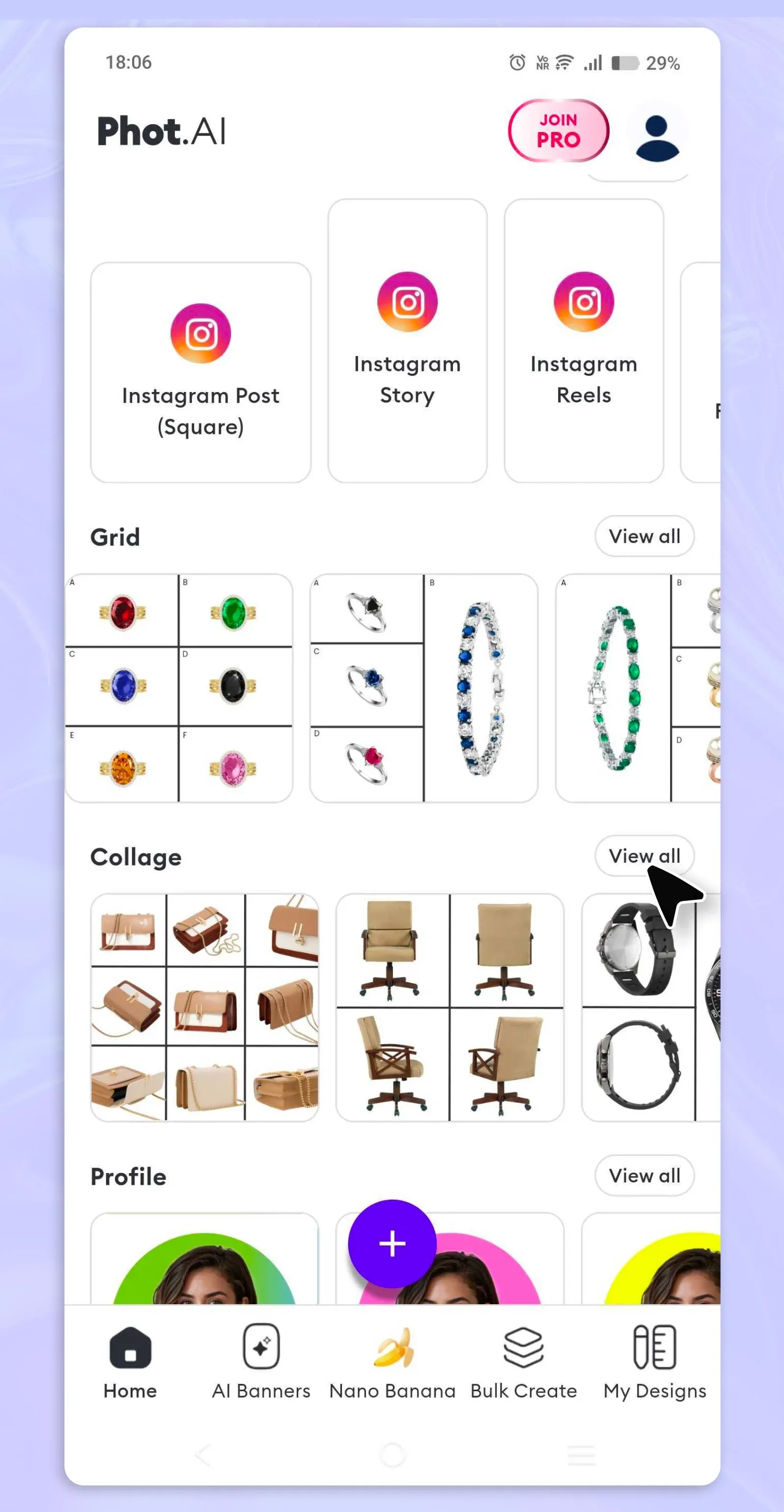
Once my photos are uploaded, I select the [AI Collage Generator]((https://app.phot.ai) tool from the menu. This is where the magic happens. The AI automatically detects faces, identifies dominant colors, and analyzes lighting patterns. Within seconds, it generates a smart layout that feels natural and balanced. I've noticed it prioritizes keeping faces visible and grouping photos with complementary colors. If I upload three sunset photos and two daytime shots, it strategically places them to create visual rhythm rather than random placement.
Step 3: Customize the Layout
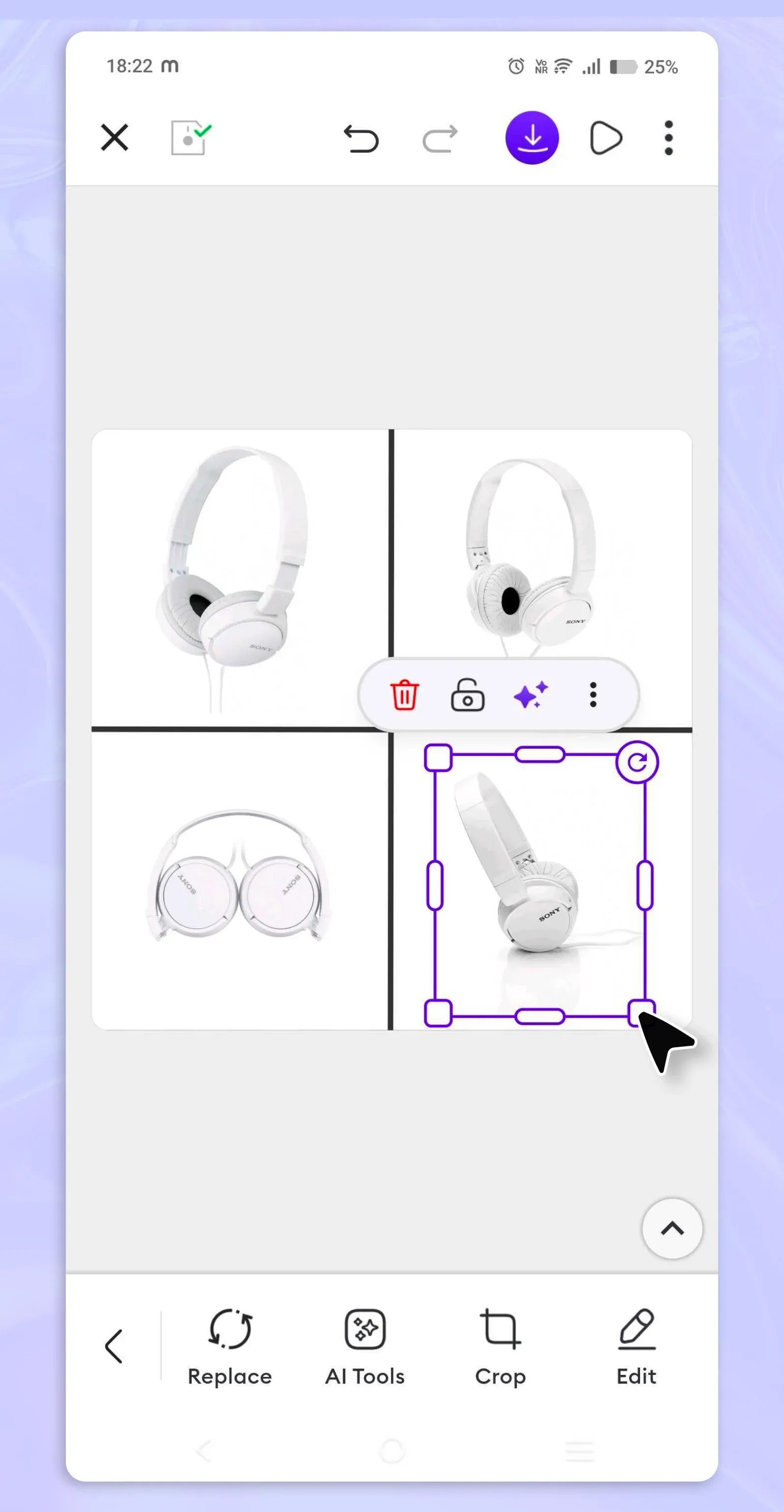 Phot.ai offers several layout options: classic grid (2×2 or 3×3), freestyle arrangements, and side-by-side formats.
For most projects, I start with the AI's suggested layout, then make minor adjustments. The interface is intuitive. Tap any photo to reposition it or swap it with another.
Here's where the Background Replacer becomes essential. I tap it and choose from solid colors, gradients, or textures. For a minimalist aesthetic, I use soft cream or marble backgrounds. For travel collages, I often choose subtle landscapes or bokeh effects that complement the photos without competing for attention.
Step 4: Enhance with AI
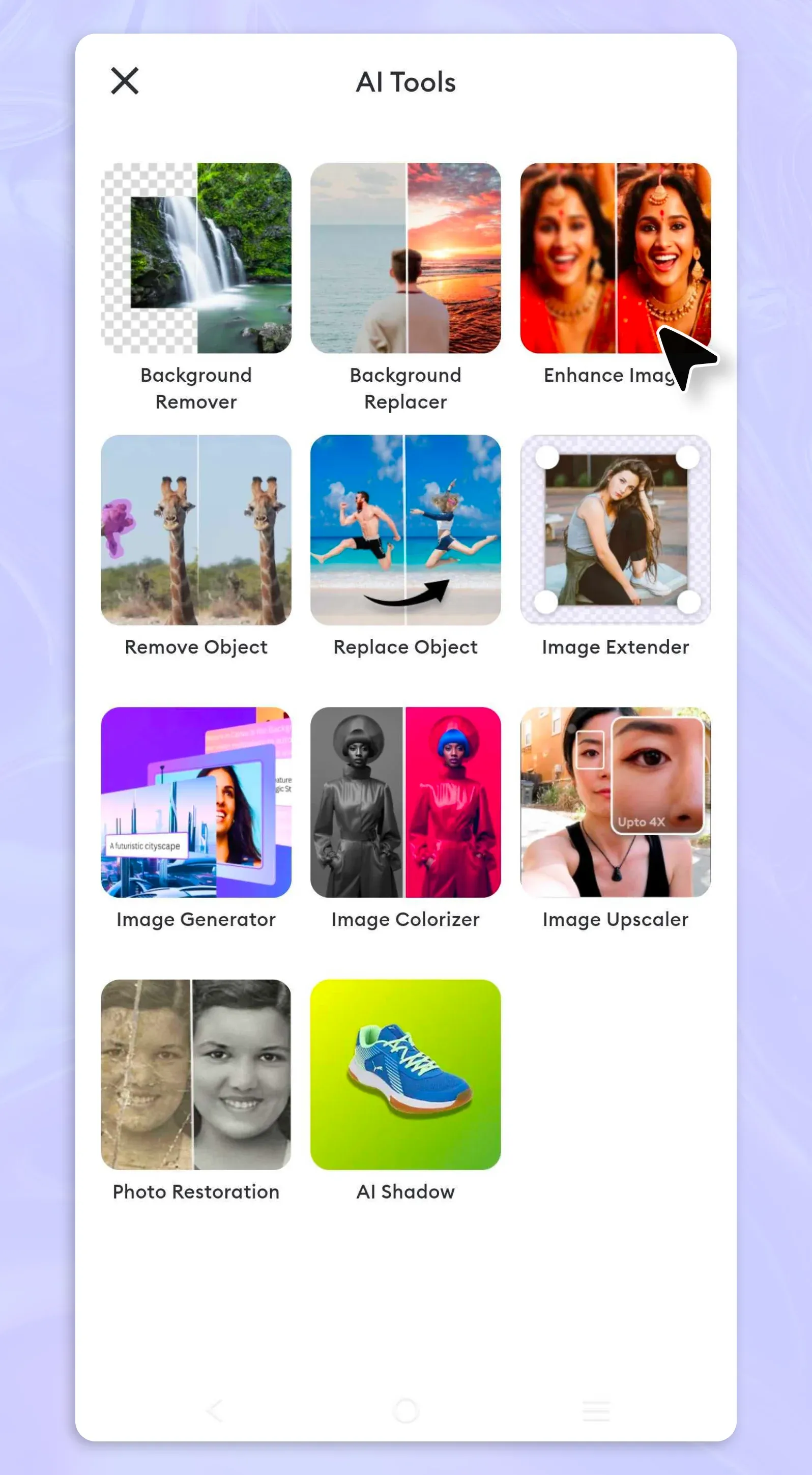
Before exporting, I always tap "AI Photo Enhancer." This step is crucial for professional results. The enhancer analyzes each photo individually, then makes subtle adjustments to create visual harmony across the entire collage. It brightens shadowed faces, adds gentle warmth to skin tones, and balances exposure differences between images.
I recently created a collage mixing indoor and outdoor photos. The enhancer unified the color temperature so seamlessly that people assumed I'd shot everything in the same location.
Step 5: Save or Share
I download the final collage directly to my Photos app by tapping the export button. The file saves at full resolution—no quality loss, no watermarks on the free tier.
From my camera roll, I can immediately post to Instagram, use it as iPhone wallpaper, or share via WhatsApp, Messages, or AirDrop. The entire process, from upload to export, typically takes under two minutes.
How to Make Side-by-Side Photos on iPhone
This deserves special mention because it's one of the most common collage requests I get. To create perfect side-by-side photos, select exactly two images in Phot.ai's upload screen. The AI Collage Generator automatically recognizes this and offers a clean 50/50 split layout.
I use it constantly for before/after comparisons, outfit posts, and travel "then vs. now" content. The alignment is pixel-perfect every time.
Advanced Tricks for Stunning iPhone Photo Collages
Once you've mastered the basics, these techniques will elevate your collages from good to exceptional.
Mix Backgrounds Strategically
Don't default to white or black backgrounds. Use the Background Replacer to add subtle gradients, wood textures, or soft pastels that complement your photos' color palette. I recently created a food collage and used a warm linen texture as the background. It added sophistication without overwhelming the dishes.
Try Shape Masks
Phot.ai can place your photos into geometric shapes like circles, hearts, or rounded squares. This works beautifully for profile-style collages or romantic photo compilations. Circle masks, in particular, create a modern editorial look that stands out on social media feeds.
Maintain Visual Balance
Follow the "visual triangle" rule: arrange your brightest or most attention-grabbing elements to form an invisible triangle across your collage. This creates natural eye movement and prevents the composition from feeling bottom-heavy or lopsided.
I learned this principle from editorial design, and it applies perfectly to iPhone collages. The AI often does this automatically, but you can fine-tune it manually for even better results.
Optimize for Social Media
Export dimensions matter. Here's what I use:
- Instagram feed posts: 1080×1080 pixels (square)
- Instagram Stories: 1080×1920 pixels (vertical)
- Facebook covers: 820×312 pixels (wide)
- iPhone wallpapers: 1170×2532 pixels (full screen)
Phot.ai lets you set custom export dimensions before downloading. This eliminates the need for secondary cropping apps.
Use AI Prompts for Custom Backgrounds
Here's an advanced move: use Phot.ai's AI generation features to create custom collage backgrounds. Example prompt I used recently: "Soft pastel background with subtle paper texture, warm daylight tones, minimalist aesthetic"
The AI generated a beautiful cream-and-blush gradient that perfectly complemented my travel photos. This level of customization used to require Photoshop skills—now it's accessible directly from your iPhone browser.
Creativity Without Limits
You no longer need to juggle five different apps or manually crop photos hoping they'll align properly. With Phot.ai, your iPhone becomes a professional collage studio—powered by AI that understands composition, color theory, and visual balance.
I've been creating iPhone collages professionally for years, testing every major tool and workflow. This approach consistently delivers the best balance of speed, quality, and ease of use. The future of mobile creativity isn't about adding more features—it's about making powerful capabilities accessible and intuitive. Phot.ai nails this philosophy.
Whether you're creating a photo grid for Instagram, making side-by-side photos for a comparison, or designing a family memory collage, this workflow adapts to your needs without forcing you to become a designer.
Frequently Asked Questions
Can I make a collage on iPhone without downloading an app?
Yes. Phot.ai works perfectly in Safari with zero installation. Just open your browser, navigate to Phot.ai, and start creating instantly.
However, if you create collages frequently, I recommend downloading the Phot.ai app from the App Store. It's free and gives you faster access with one tap, plus you can work offline after downloading your photos.
What if I want to add text or stickers?
After generating your collage, tap the "AI Editor" tool within Phot.ai. You can add custom text with various fonts, insert emojis, or include brand watermarks. I use this for adding dates to family collages or subtle branding to client work. The text editor supports full typography control — size, color, opacity, and positioning.
What's the best free photo collage app for iPhone?
Phot.ai ranks as one of the best options because it offers flexibility: use the web version for instant access or download the free app for dedicated functionality. Both versions include the AI Collage Generator, Background Replacer, and basic enhancements at no cost. The app version is particularly convenient for frequent users — it's optimized for iPhone, loads faster, and integrates seamlessly with your Photos library.
Is it the best collage making app available online?
Phot.AI offers a large suite of AI-powered tools: background removal/replacement, object removal, AI-generated backgrounds, image enhancement, etc. It’s designed to be highly accessible and beginner-friendly while producing professional-looking visuals. Especially strong for e-commerce, product photography, and social media creatives.
Phot.AI Team
Creative Intelligence Platform